I recently re-worked a site for a client. He was moving over from Joomla to WordPress, so I started from scratch with his theme design. They liked the new theme I came up with – however I’d put the menu and other navigation (Links to recent articles, etc) in a right hand sidebar, and they weren’t too sure about that.
“Doesn’t everyone have the menu on the left?”
Now I’m no usability expert, and while I figured they were probably right I thought we’d run a little experiment. I trawled around a bit, and I found a nice little post by David Dellanave. While I was OK implementing David’s solution I though it was probably a little complicated for some of my other clients, especially when it came to running 3 Google analytics accounts – so I did some digging.
The result is the SES Split Testing plugin.
To use the plugin you’ll need to be using Google Analytics tracking on your WordPress blog already (If you’re not, then I’d recommend the “Google Analytics for WordPress” plugin), then :
- Create two (or more) versions of your theme
- Select them in the plugin settings
- Define custom segments in Google Analytics
- Sit back and watch the results roll in
Create theme variations
In most cases, you’ll want to test two versions of 1 theme with some slight changes. Let’s assume your theme is in the folder wp-content/themes/mytheme. Take a copy of your theme and put it in fresh folder, e.g. wp-content/themes/mytheme_2. Open up the style.css file in the second folder, and change the Theme Name, e.g.
/*
Theme Name: MyTheme
*/
to
/*
Theme Name: MyTheme (v2)
*/
Set up plugin settings
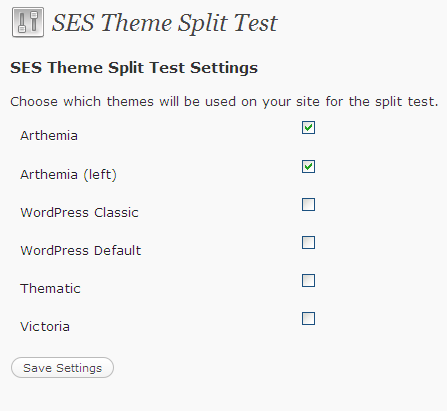 Now you can drop the plugin into your plugin directory, activate it in the WordPress backend, and then go to the settings page (Settings->SES Theme Split Test). The plugin will list all of your available themes, and you can choose which ones you want to be part of the test.
Once you’ve saved the settings, the split testing will kick in. Visitors will be randomly assigned one of the chosen themes, and they’ll receive that theme any time they visit in the next 30 days. Not only that, but their visit will be tagged with a special variable that you can pick up on in Google Analytics.
Set up Custom Analytics Segments
Google Analytics lets you define custom segments (Ways of grouping customers). In this example we want to group customers according to which theme they were shown and then we can measure our chosen metric (Purchase / sign-up / page views – whatever) for the two groups and compare them. To get started, you probably want to wait 24 hours so that Google starts to receive the tagging data.
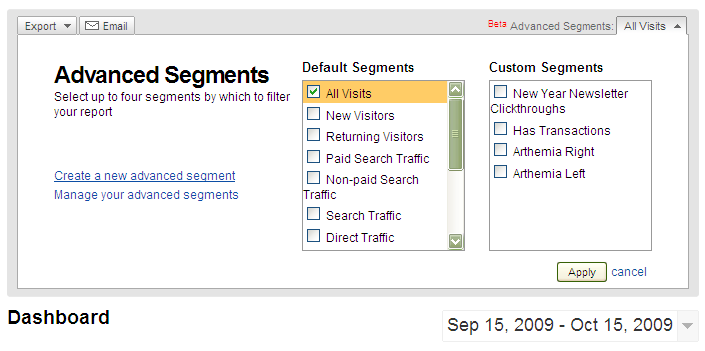 Log into your analytics account, and click on the “All Visits” dropdown (Top-right, just above the date selector), and then choose “Create a new advanced segment”. Then, you want to expand the “Visitors” dropdown under “Dimensions”
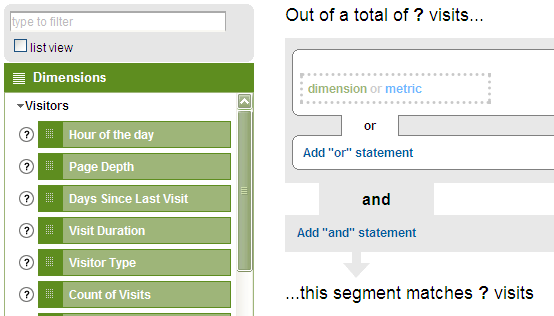
Scroll down until you find “User Defined Value” and drag it onto the right hand box that says “dimension or metric”. If Analytics has got your tagging data (See – I told you to leave it 24 hours!) then you’ll get to choose from the values being passed, e.g.
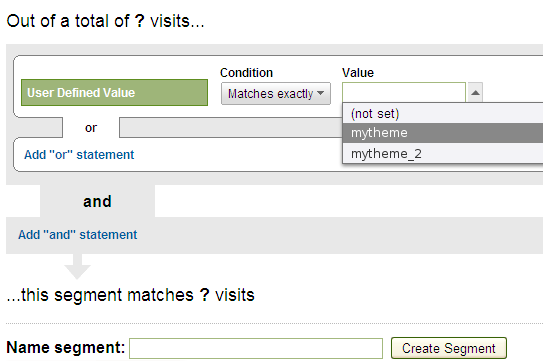
Create a segment for each of your themes, and give them a meaningful name, then you’ll be able to select them as custom segments in your reports.
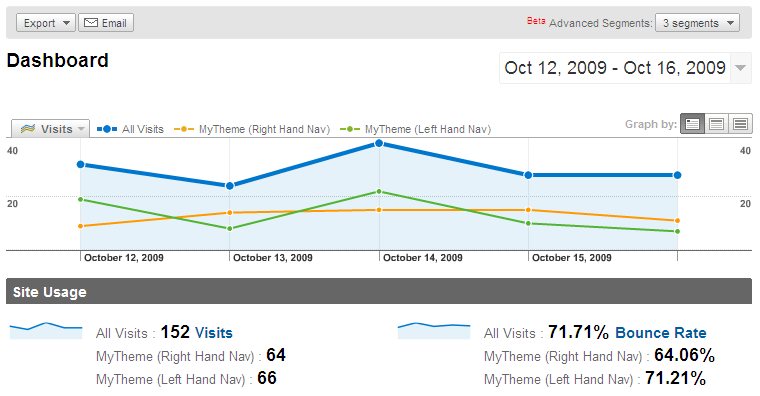
Now it’s just time to wait, see what happens, then decide. Once you’ve got a winner then just set that as your blog’s standard theme in the normal way, and either deactivate the plugin, or unselect the themes in the settings and users will see the blog default.
November 9, 2009 at 4:05 pm
It’s so funny I stumbled across this as this has been on my mind alot recently. I think people were used to Left Hand Navigation but Right Hand Navigation has become more mainstream with the explosion of blogs . . . it will be interesting to see the results. I think something to take into account is the site’s user demographic. For me I have an older customer base so I still with left hand nav. Another thing to tak into account is the site a full on blog or is he using WordPress as a CMS – for CMS I’d say Left is best.
December 15, 2009 at 9:46 pm
Nice Post – I just blogged about it.
Anyways, whats your opinion now ? Menu on the right or menu on the left ?
December 15, 2009 at 10:09 pm
Thanks – glad you like it.
All evidence suggests that having the menu on the left makes people “engage” more with your site (Higher pages per visit). Not measured goal conversion – but I’d love to hear anyone else’s findings!
December 16, 2009 at 2:19 pm
Hi Lee,
I plan to use your plugin to do some A/B testing in my own site, this is what I’ve been looking for for a long time now.
One question: does it play well with caching plugins such as WP-Supercache? Or do we need to disable it?
December 16, 2009 at 2:32 pm
Hi Luciano,
I don’t *know* the answer, but I’m 99% sure that you’ll need to turn WP-SuperCache off to run a theme split test – otherwise everyone will see the same HTML (I think). I’ve had a quick read up on WP-Supercache and there doesn’t appear to be a way of cacheing multiple different versions of a page, and serving the right one based on e.g. a Cookie value.
So for now – I think you’ll need to turn it off.
December 16, 2009 at 2:34 pm
Thanks Lee! I’ll let you know how the testing goes!
December 22, 2009 at 9:11 pm
Hi Lee,
Im excited to check out your plugin but it does not appear to be compatible with the new version Google Analyticator which is the most popular one right now .. What do you think ?
Also I tested it out briefly on three browsers and got version A three times .. Maybe as an improvment for a future release there might be a way to force version B ir you are an admin..
That said I am very excited about testing this out because if you have a lot of natural SEO traffic to play with then its so much more effective to test themes versus individual pages
thanks!
December 23, 2009 at 11:49 pm
Hey there – I think you’re right. Google Analyticator looks to have moved over to the new asynchronous GA code already (Unlike Yoast’s plugin which I normally use).
I’ll take a look at what’s required to make it work with this – I think the complicated bit will be working out which style is in use.
December 24, 2009 at 1:00 am
Hi Lee, So I installed the yoast plugin .and looks like in the near future he will be moving to the other syntax — async or rather will give people the option to choose either ( that could be complicated phew ) anyways .. I manually pasted the analytics code in my footer .. I will update you about my findings
January 11, 2010 at 2:17 am
Are you planning to create a plugin that split tests changes in the copy and not just between themes? Would love this!
January 11, 2010 at 8:16 am
Hi – no I don’t have any plans to do that at this point. Maybe check out these articles / plugins:
http://wordpress.org/extend/plugins/google-website-optimizer-for-wordpress/
or
http://carsonified.com/blog/business/how-to-do-ab-testing-in-wordpress/
Hope that helps.
January 20, 2010 at 9:37 am
Greetings Lee, and I suppose whoever else is interested … not sure if you’ve figured it out on your end, but I just added an update to the ‘output_themesetvar’ function in the SES Split Testing Plugin to choose between the current or the new asynchronous tracking functionality depending on which one exists on your website.
So it should work with both Google Analytics tracking code types.
====
function output_themesetvar() {
if ($this->splittest != “”) {
echo ‘if (pageTracker){pageTracker._setVar(“‘;
echo htmlentities($this->splittest);
echo ‘”);} else if (_gaq){_gaq.push([“_setVar”, “‘;
echo htmlentities($this->splittest);
echo ‘”]);}’;
}
}
=====
Haven’t tested it though. Will see how it works over the next couple of days since I just installed Google Analyticator.
January 20, 2010 at 10:51 pm
I’ve had a couple of emails with Moyo and he’s now suggesting:
if ($this->splittest != “”) {
echo ‘<script type=”text/javascript”>try {pageTracker._setVar(“‘;
echo htmlentities($this->splittest);
echo ‘”);} catch(err) {_gaq.push([“_setVar”, “‘;
echo htmlentities($this->splittest);
echo ‘”]);}</script>’;
}
We think this will work. If anyone can confirm then I’ll get it pushed into the plugin proper …
January 21, 2010 at 3:50 pm
The syntax looks right to me ..
The force pageview syntax is like this
_gaq.push([‘_trackPageview’, URL]);
So I bet it will work 😉
January 21, 2010 at 3:56 pm
Yeah – we’re pretty sure it’s working. I’m going to push it out as an update when I get SVN access (This evening probably).
January 21, 2010 at 8:35 pm
I’ve just pushed out 0.3 which should support both forms of tracking.
It’ll be on wordpress.org within 15 minutes or so – thanks for the patch.
January 22, 2010 at 12:25 am
Great to hear — and no problem. It’s a solid plugin, glad I could help.
February 4, 2010 at 6:57 am
This is a FANTASTIC plugin. Thank you so much.
The way I use it to track improvement is by using an ad server (openx, self hosted, free) and having my own “ads” that are simply call to action text after articles for people to move down the funnel. I simply create identical ads for each theme… and just track CTRs and conversions (openx does that). Then based on theme, I track additional stuff like putting in graphics and stuff, and they do have different impact based on theme. Due to the simple metric (CTR, and endgoal conversion based on theme(ad)) I prefer openx, because you can easily run some simple additional split tests with it.
What’s great about this plugin is the speed of being able to test a theme. Simply copy the directory, rename the plugin, do the changes, choose the SES settings and it’s running.
Works out great. All in all, an amazing time saver and headache reducer. Thanks for saving dozens of neurons!!
February 20, 2010 at 11:39 pm
Hi! You did a great job developping thsi plugin so thank you very much.
However i had some problems with it, stats from my GA account:
* All Visits : * 163 Visits
* Split B : * 24 Visits
* Split A : * 20 Visits
Those numbers didn’t add up and now i know why:
You need to put setVar before you call trackPageview, and my theme and plugins where constructed in a way that setVar was after trackPageview and it was counted by GA only when someone clicked another page on my website.
I dealed with this issue manually, but today i just changed 1 line in your plugin code and it works now. I changed this line of code:
add_action(‘wp_footer’,array(&$this, ‘output_themesetvar’),99);
to this:
add_action(‘wp_footer’,array(&$this, ‘output_themesetvar’),1);
And now this plugin code appears before all of my Analytics codes in the footer.
Best regards
Mario
February 21, 2010 at 11:48 am
Hi – I’m actually surprised things work at all with your changes.
Ideally, we should set the variable after the tracking object has been created, but before trackPageView is called. To do this properly, we need the right hooks in the main analytics plugin.
I’ve contacted Joost de Valk about his Google Analytics for WordPress plugin, but heard nothing back. I’ve also contacted Ronald Heft who has said he’ll add it – but nothing’s appeared yet. If you have suggestions about other analytics plugins I’m happy to contact the authors involved.
February 21, 2010 at 1:28 pm
You are right, it doesn’t work with this changes, i made so many changes that i was mistaken that it works. Now i’m trying other modifications and i’ll let you know when i get some results. When i use your plugin without any modifications i get those strange numbers that i wrote before. I think it’s because of the “pageTracker._trackPageview();” code which is executed before setting custom variables and those are recorded only when a user is reloading the page or visiting another page on my website. This could explain the weird bounce rates:
* All Visits :
* 85.13%
Bounce Rate
* Split B :
* 18.52%
* Split A :
* 17.39%
February 21, 2010 at 3:02 pm
You’re absolutely right. I know exactly what the problem is – but it’s difficult to fix without support from the analytics plugin authors.
Which analytics plugin are you using?
February 21, 2010 at 10:40 pm
I don’t use any analytics plugin, in my theme ( carrington theme – great for developers ) i have a place where i can put my analytics content that goes to the footer. I got it to work by deleting “pageTracker._trackPageview();” from GA given code and pasted it in your plugin into the “output_themesetvar” function:
function output_themesetvar() {
if ($this->splittest != “”) : ?>
try {
pageTracker._setCustomVar(1, “variation”,”splittest); ?>”, 3);
pageTracker._trackPageview();
} catch (err2) {}
<?php
endif;
}
and it works like a charm. I changed the _setVar fn to _setCustomVar, because the first is deprecated but it should be working both ways.
I think with the new asynchronous GA code ( _gaq.push(['_setAccount', 'UA-XXXXX-X']); ) it should be working fine without any modification but i haven't tested it yet.
Pingback: Split Test Wordpress plugin: Test Your Wordpress Theme for better CTR and Performance
March 14, 2010 at 6:50 pm
I’ve known about how important testing is, and have seen/used the website optimizer plugins for pages, but have been wondering how to A/B test a whole theme. So this looks absolutely awesome.
Did the issues w/ the analytics get worked out? A few comments up someone mentioned that the number of visitors sent to theme A and the number sent to theme B did not add up to the total visitors. Also, which analytics plugin does this one play well with?
Thanks for the great work.
March 15, 2010 at 10:26 pm
Hi – thanks for the comments. You’re right, that A+B doesn’t equal total right no – but we know why! The difference is users you bounce straight out of your site. Unfortunately none of the Analytics plugins I’ve contacted have been responsive enough to add the right hooks for us to drop into yet (Joost de valk (GA for WordPress) hasn’t replied, and Ronald Heft (Google Analyticator) has said he’ll add it in the next release, but I don’t have visibility of when that’ll be.
If you’re using something else I’ll gladly work with the authors to get the relevant stuff added – or if you’re hand-coding your analytics JS in your theme I can explain how to get it working.
March 16, 2010 at 12:26 pm
Great news. The split testing is very used right now, all want to optimize the contnet, the sales pages, everything. While the sales pages are easy, you can create 2 similar pages, i have an website where i want to test adsense placement where this plugin rocks.
April 1, 2010 at 7:41 pm
Great post Lee!
Question for you. Rather than A/B test two different themes, I want to just test the menu navigation wording.
For example Test A would have “Our Services” as one of the nav menu items, and Test B would have “Consulting Services” (just an example). Can you think of an easy way to do it without having to do two separate theme installs?
Thanks!
April 1, 2010 at 7:54 pm
Hi Matt,
Thanks for your comment. This is actually pretty easy to do.
Set your WordPress theme up so that it has two sidebars (We’ll call them sidebar-a and sidebar-b for convenience). So – your theme will include 2 calls to register_sidebars – one for sidebar-a and the other for sidebar-b (Plus whatever other sidebars you have).
Set up the two widgets you need, and publish one to sidebar-a and one to sidebar-b.
Now set up your theme so that only one of the sidebar A is actually displayed. Copy the theme, and amend the copy so that only sidebar B is displayed.
Run a split test with the two themes. Job done 🙂
May 2, 2010 at 5:42 am
Isn’t it possible to test different copy versions with this plugin in this same way?
Thanks!
May 2, 2010 at 7:26 am
I’m afraid not – this plugin is just for testing themes…
April 1, 2010 at 8:05 pm
Great Lee! Thanks for the quick reply. I will try it out.
Will this allow me to see the results in Google Website Optimizer, or just in GA itself?
April 1, 2010 at 8:21 pm
GA only. This is nothing to do with Google Website Optimizer.
July 4, 2010 at 1:13 am
Hey man is this compatible with WordPress 3.0?
July 4, 2010 at 7:15 am
Hi Brad,
I haven’t formally tested it – but I can’t see any reason why not. If you have problems, let me know and I’ll fix them up – but no complaints so far!
July 23, 2010 at 12:58 am
Hi Lee,
Thanks for creating such a fantastic plugin. I’ve finally got round to using having come across it a month or so ago.
However, I’m trying to test a child theme and unfortunately this seems to stop the plugin working properly.
When I select the child theme and another theme (eg classic) on the plugin options page, then after I submit, I have 3 boxes selected – as well as the child and classic theme the parent theme gets selected. Ditto if I only select the parent theme and another theme.
Then the split tests only seems to test the parent and the classic theme. The child theme doesn’t seem to appear through random chance (though I haven’t tested this extensively due to the following issue).
And when I try to view the child theme (using the wp_splittest_force parameter) only a small part of the page appears properly (I’m guessing that it can’t access the parent theme files).
This is a shame as I don’t want to test the parent theme, just the child vs my current theme. I’m going to try creating a theme which is a combination of the parent and child and doesn’t inherit anything. I’m sure this will work with your plugin. However if you have any alternative suggestions I’ll be v happy to try them!
A great plugin, and if you can fix this issue it will be greater still!
Cheers,
Mike
August 9, 2010 at 8:30 pm
Small note: will produce an error if you short_open_tag = Off in your php.ini
So change two times “<?" to "<?php"
Cheers!
August 9, 2010 at 8:54 pm
Hi Johannes,
I’ve just pushed out an updated version (1.1) that fixes this. It should be up on WordPress.org within 30 minutes. Thanks for the feedback.
August 9, 2010 at 9:09 pm
…and in v6.1.1 of Google Analyticator it sais: “Adds two hooks, google_analyticator_extra_js_before and google_analyticator_extra_js_after, enabling other WordPress plugins to insert additional tracking code.”
Is this the hook you have been waiting for?! =) (strange numbers issue)
August 9, 2010 at 9:19 pm
Yes, although I haven’t had chance to re-work the plugin to take advantage of it just yet!
August 9, 2010 at 9:24 pm
Thanks for the fast reply! Even without those exact numbers I’m excited to test the plugin tomorrow! 🙂
Pingback: Test Test Test for best results in Wordpress | yfenni.net
October 23, 2010 at 10:08 am
Fantastic plug-in. I have been trying to figure which platform to choose for a website redesign, but this pushed it to wp for me. You should charge for this, period. And focus development on it, lots of people will buy. Good luck and I hope you keep maintaining this.
October 23, 2010 at 10:12 am
Thanks for the kind comments Jon – hope you enjoy the plugin – all donations welcome 🙂
February 26, 2011 at 10:58 pm
Hi Lee,
I was wondering if this plugin is works by simply adding the same GA code to two different themes?
Based on the comments above, I believe that “Google Analytics for WordPress” is not working with your plugin. Let me know if this has changed.
Thanks,
Simon
March 23, 2011 at 9:57 pm
Google Analytics for WordPress should work just fine, the latest versions of the two plugins play nicely 🙂
March 13, 2011 at 9:33 pm
is it only me that cant get this plugin to work?
all I did was:
I simply uploaded the plugin, activated the plugin, chose the default 2010 theme with my own team, saved went to the sited and pressed F5 every second to see if it randomly changes the look of the website and nothing happens what so ever
is there anything else that needs to be done?
I will appreciate an answer
Thanks,Gil
March 13, 2011 at 9:50 pm
Any particular user will only ever see one theme. Otherwise you would be able measure the different performance of the different themes.
If you want to check the different the tracking is being applied check out the FAQ here:
http://wordpress.org/extend/plugins/wordpress-ab-theme-split-tests/faq/
If you want to see different themes then you can try using different browsers (Firefox, Chrome, IE etc.) – although you may still always see the same theme – depends how lucky you are!
If you delete the cookies for your site and reload then it will give you a random choice again. Keep doing that and you’ll hit a different theme sooner or later.
March 13, 2011 at 10:10 pm
Thanks alot Lee
I appreciate your quick answer
I will definitely check it and let you know
cheers!
March 22, 2011 at 6:54 pm
Hi Lee,
I’ve installed the plugin in order to test two WP templates for ctr.
All is running good and I can see the stats gathered in my analytic account. Still, I dont understand something. I see that the sum of the visits to the two templates is hardly half of the total visits to the site. Same goes for all the parameters measured by analytic.
For example, in a certain day i had 146 visits in total. One segment had 54 and the other 14. It doesnt add up. Its especially critical when I try to measure conversion and clicks.
What do you think?
March 22, 2011 at 11:15 pm
I suspect this is the problem mentioned further up regarding “bounces” not being tracked, because TrackPage is called before the custom var is set …
March 23, 2011 at 2:52 am
So I understand there is no solution yet to this and its a matter of the code in the specific WP theme I use?
With a different theme I would have seen numbers that add up correctly?
Thanks,
Alain
March 23, 2011 at 9:53 pm
The solution would be to use something like Yoast’s Google Analytics plugin alongside my plugin instead of your current GA solution. That will integrate and should track things properly.
March 25, 2011 at 4:43 am
Hi Lee,
I’ve installed Yoast’s analytic plugin but I still see the same problem. The numbers just dont add up to meet the total.
Is there any other solution?
Thanks
Alain
March 25, 2011 at 8:39 am
Drop me a note with details of the site in question here, and I’ll take a look.
March 27, 2011 at 10:52 am
Thanks you very much for your fast answer ( via email )
It’s work !
March 28, 2011 at 3:42 pm
Hi there Lee. Thanks for the plugin! I’ve got loads of ideas I want to test and I’m desperate to get it to work, but Analytics doesn’t seem to have caught my tagging data. I was using another Analytics plugin, so waited for 48 hours with that before switching to Yoast’s. It’s been about 30 hours since and still nothing. Do you think it could take longer and I’m just being impatient?
Cheers!
March 28, 2011 at 9:19 pm
The analytics code on your page looks just fine – so yeah – I’d give it another 24 hours …
March 28, 2011 at 9:27 pm
Actually, just done a quick bit of research on this, and it appears that Yoast’s plugin defines the segments a bit differently. Instead of using “User-Defined Value” to define the segment you’ll have to use Custom Variable. Depending on how you’ve set up Yoast’s plugin will define which “Key” it’s in, but on my test site with fairly basic settings, it’s “Custom Variable (Key 1)”.
If you want to keep the history you can define your segment to be based on either of these – see this screenshot.
March 28, 2011 at 10:47 pm
Excellent, got it now, thanks! It was Custom Variable (Value 1) for me and it works a charm. Thanks so much for the rapid response.
April 20, 2011 at 2:40 pm
Hi lee,
Is this plugin still working w/ the latest WP? I have used this before for a site of a friend and set this up properly. Now I tried again with my site, all upgraded wp and yoast GA and it’s been a week now and I haven’t been able to create custom segments.
It seems the ‘irresistable’ is nowhere to be found in the codes.
Thanks in advance for any help!
April 20, 2011 at 8:08 pm
Have you got a link to the site?
If you’re using Yoast’s plugin you’ll want to create your segments based on Custom Variables, rather than User Defined Values – does that help?
April 22, 2011 at 10:10 pm
Custom Variables shows only “SplitTestTheme”, unlike before it shows theme folder names.
April 23, 2011 at 7:56 am
Firstly, it doesn’t look like my analytics is installed in the link you posted – there’s no variables being set in the JS tracking code.
Secondly, if you’re seeing “SplitTestTheme” then it sounds like you’re looking at the “Custom Variable (Key X)” rather than “Custom Variable (Value X)”.
Hope that helps.
April 23, 2011 at 9:51 am
I’m sorry it was a plain html page, but wp reside in the root directory. Here’s the wp parts: http://ipods4less.com/blog/
Many thanks in advance for looking into this.
April 23, 2011 at 9:53 am
I’m seeing this parts of the ga codes:
_gaq.push(['_setCustomVar',1,'SplitTestTheme','ipods4less-mongobread'],['_trackPageview']);
April 23, 2011 at 10:33 am
Hi Lee,
You were right about:
“Secondly, if you’re seeing “SplitTestTheme” then it sounds like you’re looking at the “Custom Variable (Key X)” rather than “Custom Variable (Value X)”.”
You’ve been a great help.
To all, lee’s plugins still works perfectly with Yoast’s GA and the latest wordpress version.
April 23, 2011 at 10:56 am
One final question if I may, my previous success w/ your plugin worked w/ “User Defined Value” and not with my current setup?
Currently, values goes only to “Custom Variable (Value 1)” but not to “User Defined Value” like before? Also, should it be “Custom Variable (Value 1)” = theme1 and “Custom Variable (Value 2)” = theme2.
Currently, I’m using “Custom Variable (Value 1)” for both old and new theme.
Many thanks,
April 23, 2011 at 12:41 pm
Also, should it be “Custom Variable (Value 1)” = theme1 and “Custom Variable (Value 2)” = theme2.
No – the choice of theme goes into the same variable, e.g. “Custom Variable (Value 1)” will be set either to “theme1” or “theme2”.
Hope that helps.
April 29, 2011 at 11:58 pm
Love the plugin just installed it and will give it a go to see how well it works. Tks for developing it and sharing it!
April 30, 2011 at 2:38 pm
Waited 24hours but unfortunately it did not log correctly. The analytics code I checked this morning does look right but nothing shows in my analytics account.
_gaq.push([‘_setCustomVar’,1,’post_type’,’post’,3],[‘_setCustomVar’,2,’author’,’deth_banger’,3],[‘_setCustomVar’,3,’tags’,’andre-ovredal foreign norwegian the-troll-hunter’,3],[‘_setCustomVar’,4,’year’,’2011′,3],[‘_setCustomVar’,5,’categories’,’foreign-horror-movies horror-remakes’,3],[‘_setCustomVar’,6,’SplitTestTheme’,’HM-splittesta’],[‘_trackPageview’]);
April 30, 2011 at 2:44 pm
Just as further followup I just checked to see if it actually tracked any of my custom vars yesterday and it seems that since i installed the split tester it is not reporting any custom vars.
Does anyone know if custom vars take longer then the stats to update? I can see yesterdays traffic data but could their be a strange delay in reporting custom vars?
April 30, 2011 at 8:29 pm
Hi – it looks like you’re using Yoast’s “Custom Variables” options. Unfortunately Google only support 5 custom variables, so you’ll have to turn off some of the segmentation options you’ve got enabled in Yoast’s plugin if you want to run split tests like this (As you can see from the code you posted, the split test theme is getting dropped into the (non-existent) number 6 slot …
May 1, 2011 at 4:30 pm
Tks Lee for the tip. I will disable some YOAST options. FYI for those reading the custom variables ARE delayed longer then normal stats. So although you can see your traffic stats custom variable stats take longer to show.
I logged in today and I do see custom segment data but of course google is now having some downtime on analytics so i can not confirm if it worked or as you suggest I need to remove a few items. Tks for responding. Great plugin
April 30, 2011 at 4:14 pm
Hi Michael, I did patiently wait 3 days I think before asking Lee.
Maybe your confusion is the same as mine? Check my previous comments. It should only pick “Custom Variable (Value 1)” for all wp themes you are trying to test. You’ll be able to see the theme folder name instead of the template name in the .css file.
However, by looking at your GA push codes it seems you are pushing all 6?
Here’s what mine looks like per template viewed. Please notice “wp theme directory name goes here” below.
//<![CDATA[

	// Google Analytics for WordPress by Yoast v4.0.13 | http://yoast.com/wordpress/google-analytics/

	var _gaq = _gaq || [];

	_gaq.push(['_setAccount','UA-4084434-8']);

	_gaq.push(['_setCustomVar',1,'SplitTestTheme','wp theme directory name goes here'],['_trackPageview']);

	(function() {

		var ga = document.createElement('script'); ga.type = 'text/javascript'; ga.async = true;

		ga.src = ('https:' == document.location.protocol ? 'https://ssl' : 'http://www') + '.google-analytics.com/ga.js';

		var s = document.getElementsByTagName('script')[0]; s.parentNode.insertBefore(ga, s);

	})();

	//]]>
And one final note, after reading your codes it seems yours goes to “Custom Variable (Value 6)”
[‘_setCustomVar’,6,’SplitTestTheme’,’HM-splittesta’],[‘_trackPageview’]);
Now try to make custom segments using Custom variable (Value 6) and you should see “HM-splittesta”.
Hope this helps.
May 4, 2011 at 7:38 pm
Hi,
Well thanks to all the comments, I think I finally got this thing figured out on how to track in Google Analytics. HOWEVER, something is very much not right. I’m tracking two versions of my article template – one with Related Items and one without at the bottom of posts, and the stats I’m getting do not make any sense. Here’s a screenshot:
http://screencast.com/t/Anm3mvF9ml
“Test: With Related Items” is actually the same template I’ve been using all along, so the bounce, time on site, pages/visit, etc. should be very similar to the numbers for “All Visits.” Yet you can see that they are DRASTICALLY different… This makes me think I can’t really depend on the results this is giving me.
I understand based on what I’ve read above regarding overall traffic numbers being lower and not adding up, but this discrepancy does not make any sense to me. Yes, I’m using the Yoast GA plugin.
Any insight on this would be greatly appreciated.
Thank you,
Vic
May 4, 2011 at 10:23 pm
Does that screenshot cover a period when the test was running only – or does it cover some time where a test was running, and some time when it wasn’t.
Also – was the end of the period you’re reporting on at least 48 (Preferably 72) hours ago?
May 4, 2011 at 10:35 pm
It covers part of yesterday and part of today. Started running it yesterday. I’ll let it run for a few days to see if things adjust themselves, but still, I don’t see even for recent tracking the reason for the discrepancy in the bounce and page per visit numbers?
Thanks,
Vic
May 4, 2011 at 10:40 pm
Analytics in general are never accurate up to the current time (It’s easy to show this with a standard analytics set without anything like this, drill-throughs often don’t match summary data etc.). Custom segmentation doubly so. If you want to verify results, then you need to be looking at a period that either was running a test, or wasn’t, and ideally is at least 48 hours in the past to make sure that processing of segments has caught up.
May 4, 2011 at 10:44 pm
Lee,
Thanks, I’ll give it some time. Maybe I’ll see a bigger difference between the two versions once things settle down – right now it’s negligible. 🙂
Best regards,
Vic
May 10, 2011 at 5:19 pm
Hi Lee,
While I believe this is a great idea and much-needed plugin for WordPress, I really don’t trust the results, nor do I think they translate into actual behavioral changes from visitors – at least not in my case. As I mentioned previously, the stats (even 48+ hours later) do not “jive” with actual stats at all. Here is a screenshot of my analytics from Saturday:
http://screencast.com/t/pHwgaIGex
Note that I duplicated the pre-existing template (All Visits) to include it in the split-test as “Standard” – yet the page/visit, time on site and bounce rate vary WILDLY from the historical use of that template.
Also, note the difference between the “Standard” template results and my test template “No Related, FB on Side.” Even if I ignore the discrepancy between the performance of the pre-existing template and its use in the test and only focus on the relative numbers between those used in the testing, you’ll see approximately a 30% improvement in pages/visit and a 30% drop in bounce rate between Standard and my other template.
Needless to say, I was extremely excited about these numbers. I had let this test run for a couple of days, and the results were similar on both days (changes were in the 20-30% range).
Now I figured I probably wouldn’t see improvements as dramatic as that, but still, I figured I would see a significant change based on those results. So imagine my disappointment to find my numbers pretty much exactly the same (if not slightly worse) after putting the “improved” template in place on the site.
I’ve been looking for an easy solution to split-testing for a long time and unfortunately, based on my results, it looks like this isn’t it. I guess I’ll have to take the time to dig into Google’s Website Optimizer and see if I get any different results. :-\
Has anyone else here used this and actually seen the improvements that the analytics indicated during testing?
Regards,
Vic
May 10, 2011 at 5:35 pm
It looks like you’re running your site through WP Super Cache. You aren’t going to be able to get any sort of meaningful results from that.
See this thread here:
http://wordpress.org/support/topic/plugin-ses-theme-split-test-does-this-plugin-work-with-wp-super-cache?replies=4
May 10, 2011 at 5:42 pm
Lewis,
I disabled WP-Supercache completely while the test was running, so sorry, that’s not it. Once the test was over and I selected the winning template, I re-enabled it, which is what you’ll see on the site now.
Vic
May 10, 2011 at 8:13 pm
Ah, OK.
Just thinking about a few tweets I saw yesterday. This may be related to the problems you’re having. I’m not saying it definitely is, but it sounds like it’s a real candidate.
http://www.google.co.uk/support/forum/p/Google+Analytics/thread?tid=3d9cae4f16ee2577&hl=en
http://analytics.blogspot.com/2011/05/issue-affecting-analytics-data-for.html
I haven’t run any tests myself recently, so can’t confirm, but I know that this plugin has worked a whole heap more accurately than your data suggests – after all it’s a very simple plugin!
I’d give it a go when the GA mess has cleared up…
May 10, 2011 at 8:41 pm
Hmmm… maybe that’s it. Bad timing!
Vic
June 14, 2011 at 12:40 am
FYI, I don’t get the fast access mode message in GA any more, but recently I tried another test and the results were skewed/inflated just as they were before.
Oh well. I’ll have to find another solution.
Vic
August 28, 2011 at 6:22 am
Hello! Thanks for making this awesome plugin – I’ve installed it and turned it on, and oddly Iget nothing but a blank site in Chrome. In Firefox/Safari I was able to see both variations of theme (I got lucky) but it seems “broken in Chrome. Any thoughts on that?
Thanks again!
August 28, 2011 at 8:00 am
It’s not anything I’ve seen before, and it’s difficult to imagine how the choice of browser would affect things. All the plugin does is select a theme and tell WordPress to use that theme when creating the page. Unless your theme is broken in Chrome it shouldn’t make any difference.
Is it possible that your Chrome user-profile is different in some other way (ie logged in vs. not logged in). Failing that have you got a link to the site that’s broken.
March 4, 2014 at 11:25 am
Thanks for the great plugin!
Just wanted to say I started having the same problem (that it works in FF but shows blank in Chrome) out of the blue about 18 months ago, and have not been able to figure out why. It happens on different sites and doesn’t seem to be theme dependent. Whether or not I’m logged in doesn’t matter, either. In Chrome there is nothing sent to the browser – view source also shows empty.
December 1, 2011 at 9:36 pm
Can you describe how to “Set up Custom Analytics Segments” in the new Analytics? I don’t see “All Visits” anymore or where to find “user defined value”.
December 2, 2011 at 4:52 pm
Do you know if the same issues exist with Quick Cache?
December 28, 2011 at 8:17 am
Thanks for the plugin!
Does it swap the themes for search engines too?
December 28, 2011 at 9:07 am
Search engines will get the same treatments as normal users. Whether they’ll retain a particular theme for a particular set of “visits” is up to the crawler in question and whether it acknowledges and re-presents the relevant cookies.
January 28, 2012 at 2:03 am
Hi Lee,
your plugin looks nice, but for SEO I highly recommend to filter search engines to always get the default template (think this is the intention Anton asks about this, too.)
Depending on how big your changes between the themes are, the sourcecode and content position could differ strongly. This could have an impact on your search engine ranking cause search eingines reappraise your content relevance when it is changed (even if it is just the content position).
If you run a test with a few different themes varieties and the crawler (as it will not be the same every crawl) always sees another mixed sourcecode, this isn’t a good idea and can induce problems.
As the SE bot isn’t relevant for the a/b testing, he should always see the default template to avoid SEO problems.
Can you implement this?
Best Regards
January 28, 2012 at 7:40 pm
I don’t have any idea how to reliably identify SE bots, any ideas?
January 29, 2012 at 1:37 pm
Did you recieve my last comment? Think it’s gone into the spam filter, cause it has three links as reference.
Not shure if there was another problem, cause there is no message for waiting moderation.
January 31, 2012 at 10:12 pm
Hi Lee,
I think there went something wrong with my last comment so I post it again.
I am no programmer but I think you can filter SE bots by user agent (at least the SE bots from the main SE like Google, Yahoo, Bing):
support.google. com/webmasters/bin/answer.py?hl=en&answer=1061943
useragentstring. com/pages/useragentstring.php
Perhaps have a look in the sorucecode of phpabtest, which claims to filter SE Bots:
phpabtest. com
See also
“It also filters out all bots and shows them your control page so that it doesn’t affect your SEO efforts.”
visualwebsiteoptimizer. com/split-testing-blog/server-side-ab-testing-using-phpab-what-is-it-and-why-should-you-care/
Hope this helps. What do you think?
August 7, 2012 at 12:57 am
The possibility of split testing having a negative impact on search engine ranking made me a think twice about implementing it using the technique in this article. But after some research I came across an article that indicates that Google is fine with split testing, and that you should not treat the Googlebot crawler any differently than your normal visitors, i.e. it’s perfectly fine to send the crawler to different versions of your site each time it crawls your site.
Here’s the article I mentioned: http://blog.convert.com/matt-cutts-split-testing-is-perfectly-fine-by-google.html
January 14, 2012 at 5:59 pm
Hi Lee 🙂
I have also created a plugin that allows you to A/B and split test your WordPress site’s content (posts, pages, and widgets), stylesheets, javascripts, and themes.
If you want to check it out and give me your comments?
http://lassebunk.dk/plugins/abtest/
Thanks in advance,
/Lasse
January 21, 2012 at 1:31 pm
hi lee…
It’s been several days now… still i don’t see that tagging data on the analytics segment..
In your screenshot you got there mytheme and mytheme_2.
Is that the name of the folder of the theme? Or is that what you place on the stylesheet code?
If it is the folder name of the theme… I have space on mine… ex: “My Theme Ver2” and “My Theme Ver1”.. is this okay?
January 21, 2012 at 3:18 pm
It shouldn’t matter that you have spaces in the theme name. Make sure you’re checking the right segment – I think the tracking has probably changed a little since the article.
This comment (And the dialogue following it) might help:
http://www.leewillis.co.uk/how-to-split-test-wordpress-themes/comment-page-1/#comment-1336
January 24, 2012 at 11:34 am
I’m not using any yoast plugin though, only Google Analytics for WordPress… here are a few screen shot i got
http://www.screencast.com/t/QUO8Xu4cA5T – SES Plugin on WP
http://www.screencast.com/t/w3ULORE1 – Segments Setup
http://www.screencast.com/t/flYUlrkO3uH – Stylesheet Theme Name
http://www.screencast.com/t/NlCPNU57o7 – FTP folders of the themes
I’m checking the correct segments on the analytics dashboard.. I only got two themes to split test…
January 24, 2012 at 10:13 pm
That is yoast’s plugin, but looks like you’re running a pretty old version as the Analytics code it’s spitting out is the old-style code, so I don’t think the integration will work. I’d suggest updating to the most recent version which should work fine.
January 27, 2012 at 5:47 pm
Thanks Lee… I can see the tagging… however, it is only one…
on Custom Variable (Value 01), I only got “The Gem Bank” and no “The Gem Bank V2”
Custom Variable (Key 01), I can see “SplitTestTheme” – I don’t why this show up…
but anyway… thanks a lot…
January 30, 2012 at 12:33 pm
nevermind… got it working… thank you
August 7, 2012 at 6:51 pm
Hi,
I have got the tagging data from Analytics and so it still doesn’t recognize it yet. 2-3 days ago it was installed.
Can you help Lee?
Thanks,
Amro
http://www.speedmatters.nl is the website in question
January 16, 2013 at 10:54 pm
What mechanism does this use to determine which template is assigned to which user? I’m trying to implement this on a test site and I want a way to ensure that it is indeed showing both but every time I visit the test site, clear my cookies/cache/etc, I am still shown the same theme.
February 8, 2013 at 3:15 pm
Hi Lee,
I dont use any plugin to integrate Google Analytics.
Would you be kind enough to provide instructions of exactly what I need to do to get it working with the latest analytics code?
I can manually edit/place the analytics code as required
March 28, 2013 at 3:46 pm
I was looking for an A/b splittest plugin. Will give this one a try on one of my websites.
Thanks for the plugin and this great tutorial.
April 5, 2013 at 8:48 pm
Does this use the standard WP template engine? I’m going to be split testing Roots child themes, and didn’t know if would support that.
April 6, 2013 at 1:11 am
Yes, it uses the standard WP theme engine.
May 17, 2013 at 3:16 pm
I tried deploying it. When I select 2 of the active themes, all 6 of the installed themes display as checked. Any ideas?
May 17, 2013 at 9:04 pm
I just pushed an update to WordPress.org which may well fix this.
July 27, 2013 at 12:15 am
I am having the same problem, as far as I can tell the plugin is not functioning at all. No extra tracking info shows up anywhere that I can find and only one theme ever shows. ?wp_splittest_force=themefolder does nothing. In the settings menu several 4 themes are selected even when I only select 2 and save.
July 27, 2013 at 1:37 am
Yeah, it doesn’t like subthemes. If I set it to a non subtheme it works fine.
July 27, 2013 at 10:19 am
I’ve just pushed some changes which might help with this. Can you try the development version here:
http://downloads.wordpress.org/plugin/wordpress-ab-theme-split-tests.zip
You’ll need to resave your settings – let me know how you get on!
November 8, 2013 at 1:35 am
Still not working for me. I only get the first theme I select, any others never get shown.
January 24, 2014 at 8:46 pm
I’m having a Google Analytics issue (and the instructions here are for the old version of Google Analytics, making the setup a bit tricky).
But when I check my report under Audience –> Custom and check my stats they seem low. In the past month it is showing both of my themes in my test have 133 visits to the site out of 1,888. Do you have any advice as to why this might be? Shouldn’t this be 100%?
January 24, 2014 at 10:21 pm
Hi Patrick, not off the top of my head – no. I’d recommend testing with Chrome’s ingognito mode a few times and check you get different themes, and google analytics code that looks correct.
Unfortunately I can’t provide support for my free plugins unless it’s on a paid for basis. If it’s important to you, feel free to drop me a note on the contact page and we’ll see what we can work out.
August 13, 2014 at 10:44 am
Does this work with the recent new version of Google Analytics (“function(i,s,o,g,r,a,m)”)? I looked at the source code of the HTML, but I don’t see any extra Javascript for setting custom GA variables. I only see the standard
ga();
I also can’t find ‘split’. I know it is (partially) working because I loaded in a private browser without cookies, and it will load one of the two themes.
August 4, 2015 at 11:31 am
Any update on this?
Is it still worth giving it a shot to make this work? Or is this project abandoned and heavily outdated?
I like the idea, need it, and would not mind paying for a plugin like this. I know WPMUDEV has a similar plugin but their admin area is so spammy with banners everywhere in your WP admin. I don’t like to fill WP admin with their stuff.
August 4, 2015 at 8:37 pm
I’m not sure why you think it’s outdated?
I’m not using this on any live client sites, however the basic functionality works just fine – I just installed it on a dev site and was able to get different themes served exactly as I’d expect. The only thing that might need looked at is the Google Analytics which probably doesn’t work if you’re running Universal Analytics (Google’s newest incarnation). That should be pretty simple to resolve though, and I’d gladly accept a patch that adds support for that.
If you’re using either of the two older styles then everything should work as designed.
August 11, 2015 at 3:42 pm
Ok that sounds great, I thought it was very outdated at first because of the support tickets and reviews which report it not working.
But I’m comfortable with code and considering what you just told me I think i should be able to get it working then.
P.S. Does it remember the widgets that I set in a theme?
I just tried WPMUDEV’s theme split test plugin and it doesn’t remember the widget settings from one of the themes in the test.
Will try it out soon. Thanks for providing the plugin for free.
August 11, 2015 at 4:25 pm
Hmm, I just tried it but your plugin also does not keep the widget settings of the secondary (without split test not active) theme in the split test.
Is there any way to keep the widget settings of both themes intact?
The themes are very different. They are not based on eachother and their widget areas are named a bit differently.
P.S. I saw you just did an update. I’m curious, which part of the plugin did you update?